Capital Integration
The integration between Capital X Panel Designer and Capital represents a significant advancement in electrical design workflow efficiency.
When working with panel designs, a key feature is the ability to update panel designs between Capital X Panel Designer and Capital. This process utilizes the ICD (Interface Control Document) as the standard for transferring the panel design information. This bi-directional integration facilitates seamless data synchronization within the Capital environment. Changes made in the Capital X Panel Design are effectively reflected back to the Capital and vice versa, ensuring both designs remain aligned and consistent.
Furthermore, Capital Logic Designer can launch Capital X Panel Designer as an integrated solution for panel design capabilities. This integration enables users to access Capital X Panel Designer's comprehensive functionality directly from within Capital Logic Designer, streamlining the workflow by eliminating the need to switch between separate applications. This unified approach provides designers with a more efficient and cohesive design environment, ultimately leading to improved productivity and design quality.
Prerequisites for Capital Integration
- To successfully launch Capital X Panel Designer within Capital Logic Designer, you will require Capital 2408 with Updates 2508 or later.
- For Capital ICD data exchange, you will need Capital 2512 with Updates 2604 or later to ensure full compatibility.
- The Capital software must be fully installed with a valid license and validated. All subsequent main versions and updates are supported beyond the specified minimums.
- Must have access to both Capital Logic Designer and Capital Device Modeler and have ICD user permissions.
- Capital Panel Designer License (Capital Add-on License) must be assigned to the account in Capital X Panel Designer.
Setup Capital Integration for Capital X
Before proceeding with configuration, ask your Capital administrator to:
- Navigate to the config folder in your Capital installation directory and locate "clientprops.xml"
- Open clientprops.xml with administrator rights and update the following configuration:
<cors enabled="true"
allowedOrigins="https://cloud.sw.siemens.com"
allowedMethods="GET,POST,DELETE,OPTIONS"
allowedHeaders="authorization,content-type"/>
- Save and close the clientprops.xml file. Restart the Capital Integration Server(CIS).
After the CIS server restart is complete, you may follow Generating and Deleting Technical User Account Credentials guide to generate technical user account credentials.
Lastly, please follow the steps below to complete the setup and configuration:
- Download the CapIntConfig.zip file from this link. Save it to a location on your computer where you can easily find it.
- Copy the CapIntConfig.zip file to your Capital X Home Folder.
- Unzip the CapIntConfig.zip file. After extraction, you will see the Capital Logic Designer shortcut in the extracted folder.
- Launch Capital Logic Designer by clicking on the shortcut you found in the extracted folder.
- After the application fully loads, you should see the Panel Designer icon appear under Workflow Tab.
Setup Capital Integration for Capital
Please follow the steps below to complete the setup and configuration:
- Navigate to the your Capital installation directory.
- Open files using a text editor with administrator rights and update the following configuration:
config/clientprops.xml
<cors enabled="true"
allowedOrigins="https://cloud.sw.siemens.com"
allowedMethods="GET,POST,DELETE,OPTIONS"
allowedHeaders="authorization,content-type"/>
adaptors/adaptors.xml
<!--Enable this to interact with Capital Panel Designer Web in
Modeler Architect Logic Designer Systems Integrator Harness Designer Harness Designer Modular
===================================================================================================-->
<document format="capitalpaneldesigner"
class="chs.bridges.adaptors.paneldesigner.PanelDesignerAdaptorFormat"
description="Adaptor to enable interaction with Capital Panel Designer Web"
propFile="resources/capitalpaneldesigner.properties"
applications="Modeler, Architect, Logic Designer, Systems Integrator, Harness Designer, Harness Designer Modular"
/>

<!-- The handshake by default uses embedded Capital Panel Designer Web Client to interact with Capital Panel Designer. -->
<handshake localport="49902" remoteapplication="paneldesigner" remotehost="cloud.sw.siemens.com" remoteport="443"/>
adaptors/resources/capitalpaneldesigner.properties
#-----------------------------------------------------------------------------------------------------------------------
# This file configures the behaviour of Capital Panel Designer web view inside Capital
#-----------------------------------------------------------------------------------------------------------------------


# This property sets the protocol used (http/https) for launching Capital Panel Designer
connectProtocol=https

# Url path of the Capital Panel Designer server. This value is appended to host and port value to form Capital Panel Designer url
# which would look like https://host1:port1/app/dashboard when connectProtocol=https, host=host1,
# port=port1 and panelDesigner_url_path=app/dashboard
# host and port are picked from Connection Properties Dialog while protocol will be picked from connectProtocol property
url_path=capital-panel-designer/app/dashboard?hosted=true

# The flag below determines whether the embedded browser should show context menu option to launch developer tools to
# inspect a webpage. By default, the flag is set to false. If the flag's value is changed to true, then user will see an
# option "Show Developer Tools" in the context menu of the embedded browser.
enable_developer_tools=false
- Save and close the files. Restart Capital Integration Server(CIS).
- Launch Capital Logic Designer. After the application fully loads, you should see the Panel Designer icon appear under Workflow Tab.
OpenID Connect (OIDC) authentication configuration
This configuration only applies to Capital. If you do not want to use OIDC authentication, you can skip this section.
Reference the Multi-Factor Authentication Support guide to configure oidc.properties and oidc_background.xml files for OpenID Connect (OIDC) authentication.
The token authorization method will be ClientIDValidation, which requires configuring in the oidc_background.xml file.
Capital host configuration
To enter Capital host:
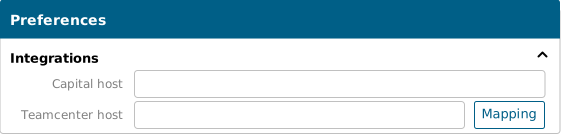
- In Capital X Panel Designer, click on menu File | Preferences
- Go to Integration section
- Enter the Capital host
Authentication with Capital server
To authenticate with the Capital server, you can use either of the following methods:
Username/password login: Provide your Capital username and password to authenticate with the Capital server.
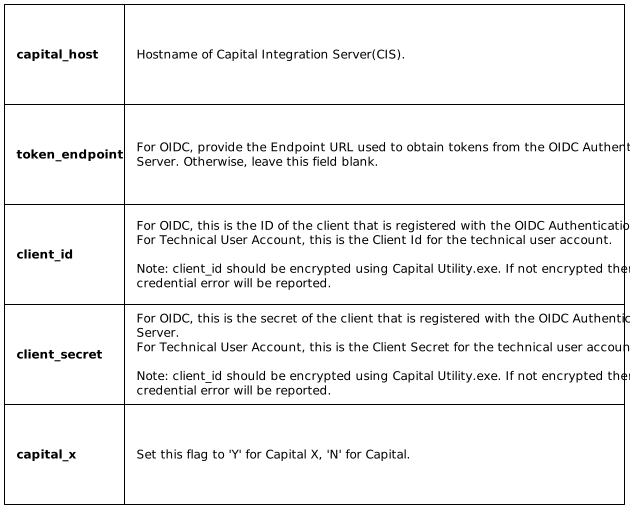
Client credentials: For OpenID Connect (OIDC) authentication (for Capital only) and Technical User Account authentication (for Capital X only), create a pndoidc.properties file using the provided template. Configure the file with your encrypted client ID and client secret, then place it in the User folder for authentication.
To open User folder, press “Window + R” to open Run command window, paste %USERPROFILE% and click OK.
Reference the Encrypting Text Strings for Configuration Files guide for step by step instructions on how to encrypt client ID and client secret.
Template of pndoidc.properties:
capital_host=https://<server host>:port
token_endpoint=https://<server host>:port/auth/<Path>/protocol/openid-connect/token
client_id=sample_id
client_secret=secret
capital_x=N
Launch Capital X Panel Designer within Capital Logic Designer
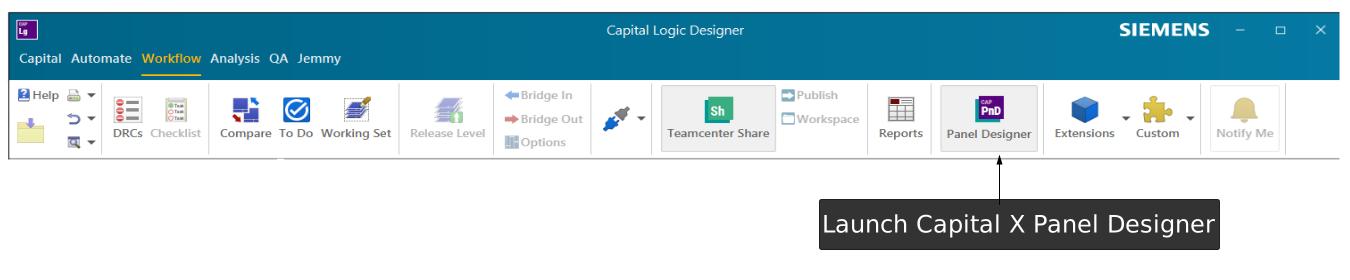
Launch Capital Logic Designer and wait for the application to fully initialize. Once loaded, navigate to the Workflow tab in the Capital Logic Designer interface. From there, click on the Panel Designer to launch Capital X Panel Designer directly from within the Logic Designer environment.
Send and retrieve Capital ICD data exchange
Send ICDs to Capital
To transmit ICDs to Capital:
- Launch Capital X Panel Designer within Capital Logic Designer and open the drawing.
- Click on menu Applications | Capital, then select Send ICDs.
- A dialog box will appear, prompting you to provide credentials for the Capital server. Provide your credentials to authentication with Capital server and click Login.
- Once logged in, you will see the Applicability dialog box. Provide your project name on Capital Logic Designer and click OK.
- ICDs will be transmitted to Capital Logic Designer, and you will see a confirmation message indicating that the ICDs has been successfully sent.
- Open project in Capital Logic Designer, you will see the ICDs from Capital X Panel Designer in the ICD tab. If the ICDs are not visible, you can click on the Reload ICDs button to refresh the icd list.
- Now you can use the ICDs in Capital Logic Designer for further design.
Retrieve ICDs from Capital
To retrieve ICDs from Capital:
- Ensure that Capital Logic Designer is open, and you have the project containing the drawing whose ICDs you wish to send, open and ready.
- Simultaneously, make sure that Capital X Panel Designer is launched (typically from within Capital Logic Designer) and is ready to receive updates for the relevant drawing.
- In Capital Logic Designer, navigate to the Workflow tab, click on the action button Send ICDs.
- A dialog box will appear, prompting you to provide credentials for the Capital server. Provide your credentials to authentication with Capital server and click Login.
- ICDs will be transmitted to Capital X Panel Designer, and you will see a confirmation message indicating that the ICDs has been successfully sent.
- Finally, switch to your drawing in Capital X Panel Designer. The system will notify you of the incoming ICDs changes for the drawing, which will then require your manual review and processing to update the panel design.
Scenario 1: New pin is created for ICD devices in Capital Logic Designer
If you have created a new pin for ICD devices in Capital Logic Designer, the following changes will occur when retrieving ICDs from Capital:
The new pin will be added to the ICD in Capital Device Modeler.
On the Capital pins dialog, the system will notify you of the new pins in Capital X Panel Designer, indicating that the pin is newly created in Capital and requires you to add it into Capital X Panel Designer.
You can choose to add the new terminal or symbol to the drawing by selecting the newly created pins in the dialog box and click on either Place terminal or Place symbol.:
a) Click Place terminal will automatically add the new terminal under the respective panel to the drawing, and you can then adjust and connect it to the respective components.
Place a terminal for new pin b) Click Place symbol will show the Place symbol dialog, allowing you to choose a symbol and map it for the new pin. After that, click on OK to add the symbol under the respective panel to the drawing, and you can then adjust and connect it to the respective components.
Place a symbol for new pin
Scenario 2: Pin is renamed for ICD devices in Capital Logic Designer
If you have renamed a pin for ICD devices in Capital Logic Designer, the system will automatically reflect the pin changes in both Capital Device Modeler and Capital X Panel Designer when retrieving ICDs from Capital. Manual update is not required.
Scenario 3: Pin is deleted for ICD devices in Capital Logic Designer
If you have deleted a pin for ICD devices in Capital Logic Designer, the following changes will occur when retrieving ICDs from Capital:
- The deleted pin will be removed from the ICD in Capital Device Modeler.
- A warning message will be displayed in Capital X Panel Designer, indicating that the pin is deleted in Capital and asking for deletion confirmation.
- If click Yes, the deleted pin will be removed from the component, and the respective connections to the deleted pin will be removed in Capital X Panel Designer.
- If click No, nothing will happen in Capital X Panel Designer, and you will need to make manual adjustments.
Scenario 4: Pin is modified for ICD in Capital Device Modeler
When sending ICDs to Capital or retrieving ICDs from Capital, any changes made to the pins of an ICD in Capital Device Modeler will be overridden by the changes made in Capital X Panel Designer or Capital Logic Designer. This means that any new pins created, renamed, or deleted in Capital Device Modeler will not be reflected in Capital Logic Designer and Capital X Panel Designer.
Scenario 5: ICD is renamed in Capital Device Modeler
If you have renamed an ICD in Capital Device Modeler, this will cause the related ICD devices to become unlinked from the ICD. Therefore, you will need to manually update the name of the related ICD devices in Capital Logic Designer to reflect the changes made in Capital Device Modeler.
Scenario 6: Drawing name is renamed in Capital X Panel Designer
If you have renamed a drawing in Capital X Panel Designer, the system will automatically update the ICDs in Capital Device Modeler when transmitting ICDs to Capital. This will cause the related ICD devices to become unlinked from the ICD. Therefore, you will need to manually update the name of the related ICD devices in Capital Logic Designer to reflect the changes made in Capital X Panel Designer.
Scenario 7: A sub panel is renamed in Capital X Panel Designer
If you have renamed a sub panel in Capital X Panel Designer, the system will automatically update the ICDs in Capital Device Modeler when transmitting ICDs to Capital. This will cause the related ICD devices to become unlinked from the ICD. Therefore, you will need to manually update the name of the related ICD devices in Capital Logic Designer to reflect the changes made in Capital X Panel Designer.
Scenario 8: A sub panel is deleted in Capital X Panel Designer
If a sub panel deletion is detected in Capital X Panel Designer, the system will automatically delete the corresponding ICDs from Capital Device Modeler when transmitting ICDs to Capital. However, you will need to manually delete the related ICD devices from the design diagram in Capital Logic Designer.
